

A single social media post can pass through 5 different tools before it goes live. The idea might start as a presentation, move to a design tool, become a video, get a voiceover, and finally get scheduled. That also changes what makes a social media tool useful.
A scheduling platform does not need to compete with a design tool, and a video generator does not need to replace an analytics platform. The better approach is to pick tools based on where your team spends the most time: planning, publishing, designing, creating video, producing audio, managing conversations, or repurposing existing content.
This list covers 10 best social media marketing tools that fit into different parts of that workflow. We’ll look at what each tool does well, how you can use it, who it makes sense for, and what its pricing looks like.
What Does a Social Media Marketing Stack Actually Need?
Before choosing tools, it helps to separate social media work into the jobs that need to get done. A team publishing three LinkedIn posts a week has very different requirements from an agency managing 20 client accounts or a brand producing daily short-form video.
Most social media workflows can be divided into 6 areas:
- Planning and content management: You need a place to organize ideas, campaigns, publishing dates, and content across multiple platforms.
- Design and visual creation: Static posts, carousels, charts, infographics, and branded graphics often make up a large part of a social calendar.
- Video production: Short videos, explainers, avatar videos, demos, and animated content can take far more production time than text or static graphics.
- Voice and audio production: Voiceovers, narration, translated audio, and podcast-style content can be produced with tools.
- Editing and repurposing: A webinar, podcast, interview, or long video can often become several smaller social posts.
- Publishing, engagement, and reporting: Scheduling is only one part of social media management. Teams may also need approvals, comment management, inboxes, analytics, and performance reporting.
You do not necessarily need a separate tool for every category. A small business might manage most of its workflow with Canva and Buffer, while a larger team may combine Sprout Social with dedicated design, video, and audio tools.
Having said that, let’s discuss these top 10 social media marketing tools in detail:-
1. Publer
Publer is a social media management tool built mainly around planning, scheduling, and publishing content across multiple accounts. It is a good fit for people who want more control than native platform schedulers provide, without moving into the higher-priced enterprise category.
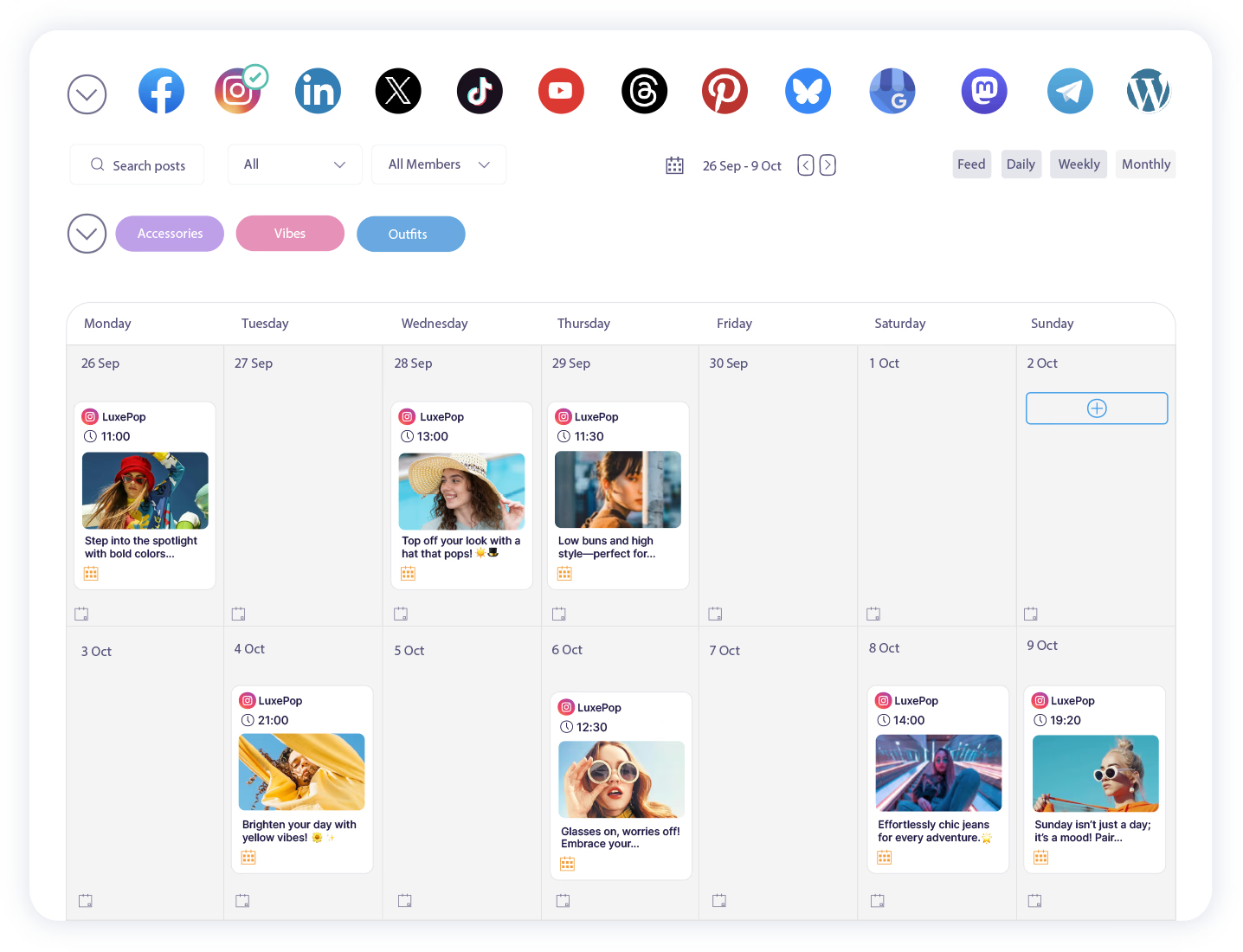
What makes Publer useful is how much of the publishing workflow it puts in one place. You can prepare posts in advance, organize accounts into workspaces, reuse evergreen content, and manage several social networks without constantly switching tabs.
How Should You Use Publer?
Publer works best when you use it as the publishing layer of your social media stack rather than as your main content creation tool.
- You can schedule posts in advance across multiple social platforms and manage your calendar from one dashboard.
- You can use bulk scheduling when you already have several posts prepared and want to upload them together instead of creating them one by one.
- You can organize different brands, clients, or teams into separate workspaces, which is useful for agencies and freelancers.
- You can save drafts and prepare posts before they are ready to enter the publishing calendar.
- You can connect Canva to bring finished designs into your publishing workflow without repeatedly downloading and uploading files.
- You can recycle evergreen posts when older content is still relevant and worth publishing again.
- You can adjust publishing times based on your planned posting schedule rather than logging into each social platform separately.
Who Should Use Publer?
Publer makes the most sense for freelancers, small marketing teams, founders, creators, and agencies managing several social profiles. It can also work well for businesses that publish frequently but do not need the reporting, listening, customer-service, and approval systems found in larger social media platforms.
Publer Pricing
Publer offers a free plan for lighter usage. Its paid Professional plan starts at around $5 per month, although the final cost depends on how many social accounts and users you add.
For agencies or teams managing many profiles, pricing can increase as more accounts and users are included. Treat this as a starting range rather than a fixed price, since plans and billing structures may change over time.
2. Sprout Social
Sprout Social sits at the other end of the market from simpler scheduling tools. It can publish posts, but scheduling is only one part of what it does. The platform is built for teams that also need to manage incoming messages, monitor brand activity, compare performance across accounts, coordinate approvals, and report on social media results from one place.
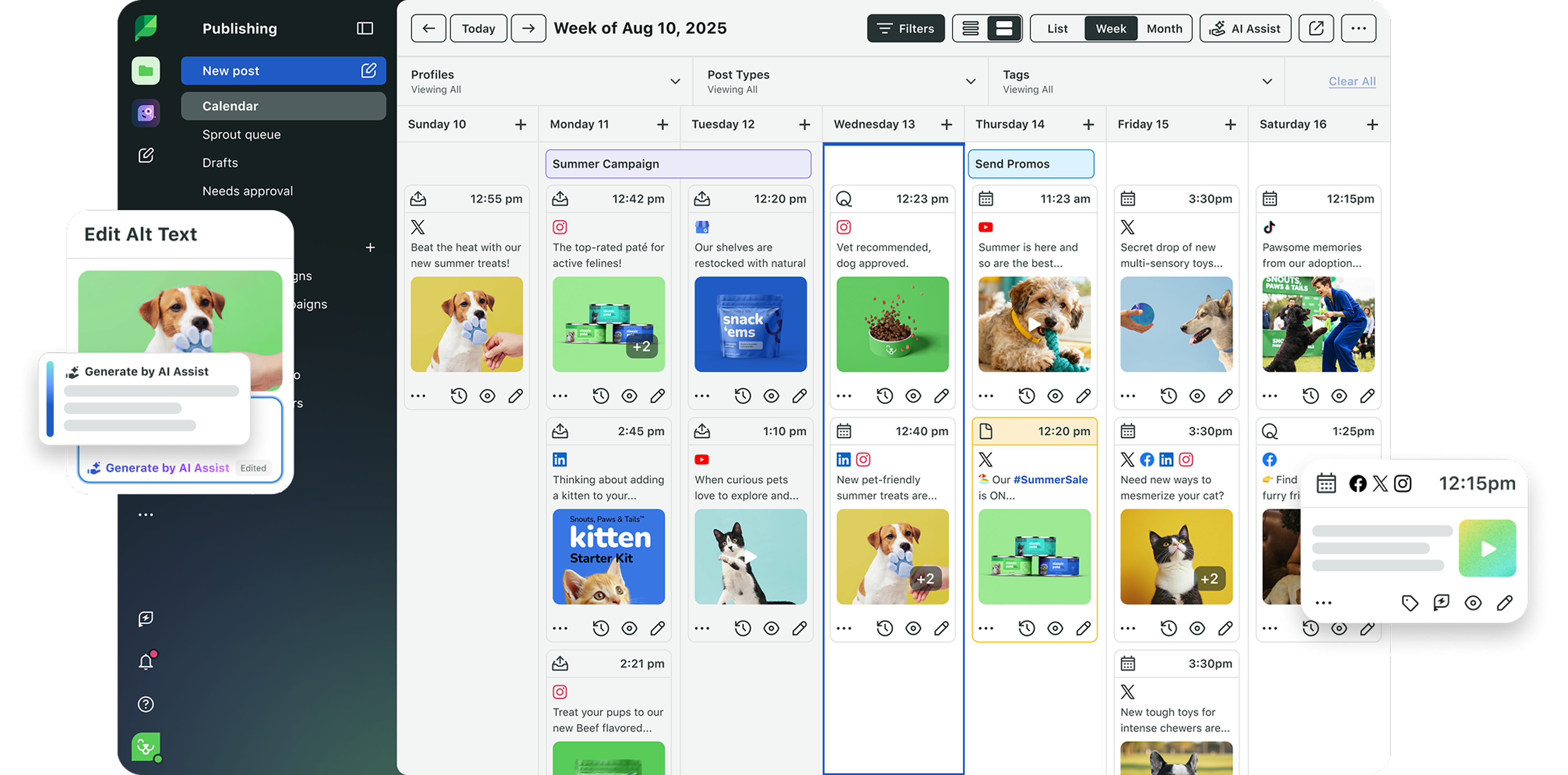
How Should You Use Sprout Social?
Sprout Social makes more sense when several people are involved in social media or when the volume of activity has become difficult to manage directly through LinkedIn, Instagram, TikTok, Facebook, and other native dashboards.
- You can plan and publish content across multiple profiles from the same interface instead of maintaining separate calendars for every network. Multi-profile publishing is included across Sprout Social plans.
- You can use its Smart Inbox to bring messages, mentions, and comments from connected profiles into a common feed. This can be particularly useful for brands receiving regular questions or support requests through social media.
- You can set up approval workflows when posts need to be reviewed by managers, clients, brand teams, or legal teams before they are published. Approval workflows are available on the Professional tier.
- You can monitor keywords and locations to keep track of conversations that may not directly tag your brand. These capabilities are included from the Standard plan.
- You can compare post, profile, competitor, paid, and engagement performance rather than building reports manually from several social networks. The reporting depth increases as you move into higher plans.
- You can use Optimal Send Times to help decide when scheduled posts should go live based on expected audience activity. This feature is included in the entry-level Essentials plan.
- Larger teams can also connect social media with customer-care systems such as Salesforce and Zendesk on the Advanced plan, making social conversations part of a wider support workflow.
This is where Sprout Social differs most from tools such as Publer. If you only need to schedule 15 posts for next month, much of Sprout Social may be unnecessary. If 5 people are publishing, approving, responding, monitoring, and reporting across several accounts, those additional features start making more sense.
Who Should Use Sprout Social?
Sprout Social is better suited to established marketing teams, agencies, larger brands, customer-facing companies, and businesses where social media is handled by more than one person.
It is particularly useful when social channels are also being used for customer service. A company receiving hundreds of comments, questions, complaints, mentions, and direct messages needs a very different setup from a founder posting three times a week on LinkedIn.
Sprout Social Pricing
Sprout Social is one of the more expensive tools on this list. As of 2026, its annual-billing prices start at:
- Essentials: $79 per seat per month.
- Standard: $199 per seat per month.
- Professional: $299 per seat per month.
- Advanced: $399 per seat per month.
- Enterprise: Custom pricing.
Essentials and Standard support up to 5 social profiles, while Professional includes unlimited social profiles. Sprout Social charges per seat, so adding more team members can raise the total cost quickly. Annual billing is cheaper than monthly billing. For example, Essentials is currently $79 per seat per month when billed annually versus $99 per seat when billed monthly.
3. Buffer
Buffer is one of the easier social media management tools to get started with. It covers the basics you would expect, such as planning, scheduling, analytics, and engagement, but without the heavier setup that comes with platforms aimed at larger marketing departments.
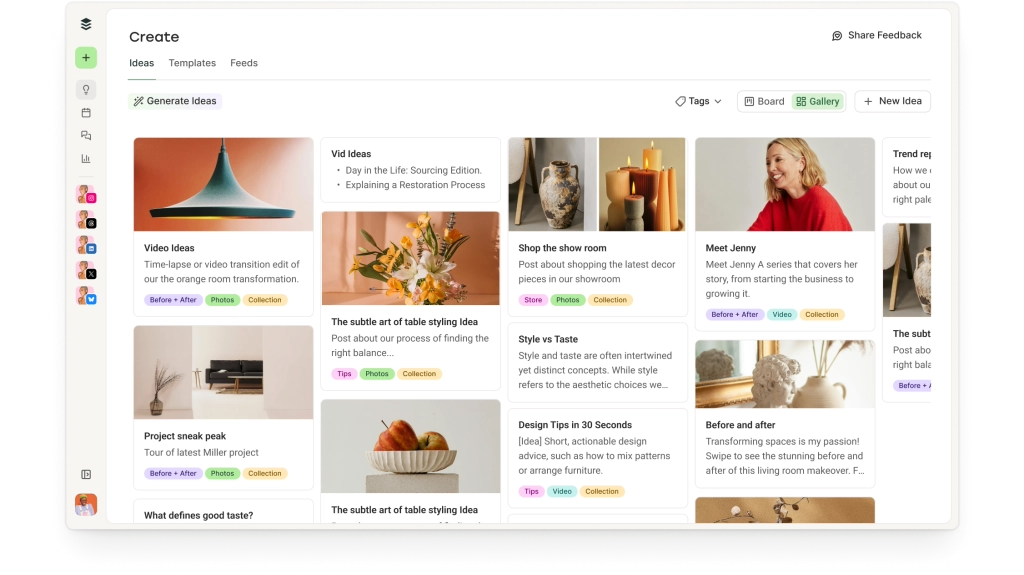
Its pricing model is also different from Sprout Social. Buffer charges mainly by the number of social channels you connect, which can work well for creators and smaller teams managing a limited number of accounts.
How Should You Use Buffer?
Buffer works well when you want one place to organize ideas, prepare posts, schedule them, and review what is working.
- You can build a publishing calendar and schedule posts across Instagram, Facebook, LinkedIn, TikTok, X, Threads, Pinterest, YouTube Shorts, Bluesky, Mastodon, and Google Business Profile.
- You can maintain a library of content ideas before turning them into finished posts, which is useful when your team plans content in batches.
- Its AI Assistant can help rewrite, refine, or repurpose social copy, although it is better used as a drafting aid rather than replacing the final editorial review.
- Paid plans include advanced analytics, which can help you compare post performance and decide what types of content deserve more attention.
- You can manage replies through Buffer's community inbox instead of checking each social platform separately.
- Paid plans include hashtag management and first-comment scheduling, which can be useful when those are part of your publishing process.
- Teams can use approval workflows and different access levels so that one person can draft content while another reviews it before publishing. These collaboration features are available on the Team plan.
- Buffer also supports LinkedIn PDF scheduling, which makes it useful for teams regularly publishing document-style or carousel content on LinkedIn.
Who Should Use Buffer?
Buffer is a good fit for creators, consultants, founders, small businesses, and marketing teams that mainly need publishing, basic engagement management, and analytics. It is also well-suited for smaller agencies because multiple client accounts can be managed from the same dashboard. The main thing to watch is the number of connected channels, since that is what drives much of the pricing.
Buffer Pricing
Buffer offers three main plans:
- Free: Supports up to three channels, one user, and up to 10 scheduled posts per channel.
- Essentials: Starts at $5 per month per channel when billed annually, or $6 per channel on monthly billing for the first 10 channels.
- Team: Starts at $10 per month per channel when billed annually, or $12 per channel on monthly billing for the first 10 channels. The Team plan includes unlimited users and content approval workflows.
Buffer reduces the per-channel rate as you connect more accounts, so the effective cost can fall for agencies and businesses managing larger numbers of profiles. Paid plans also come with a 14-day free trial.
4. Canva
Canva is your go-to tool for Instagram posts, LinkedIn carousels, Reels, YouTube thumbnails, short videos, infographics, ad creatives, and other formats without moving between separate design and editing software. Canva also includes a content planner for scheduling social posts directly from the platform.
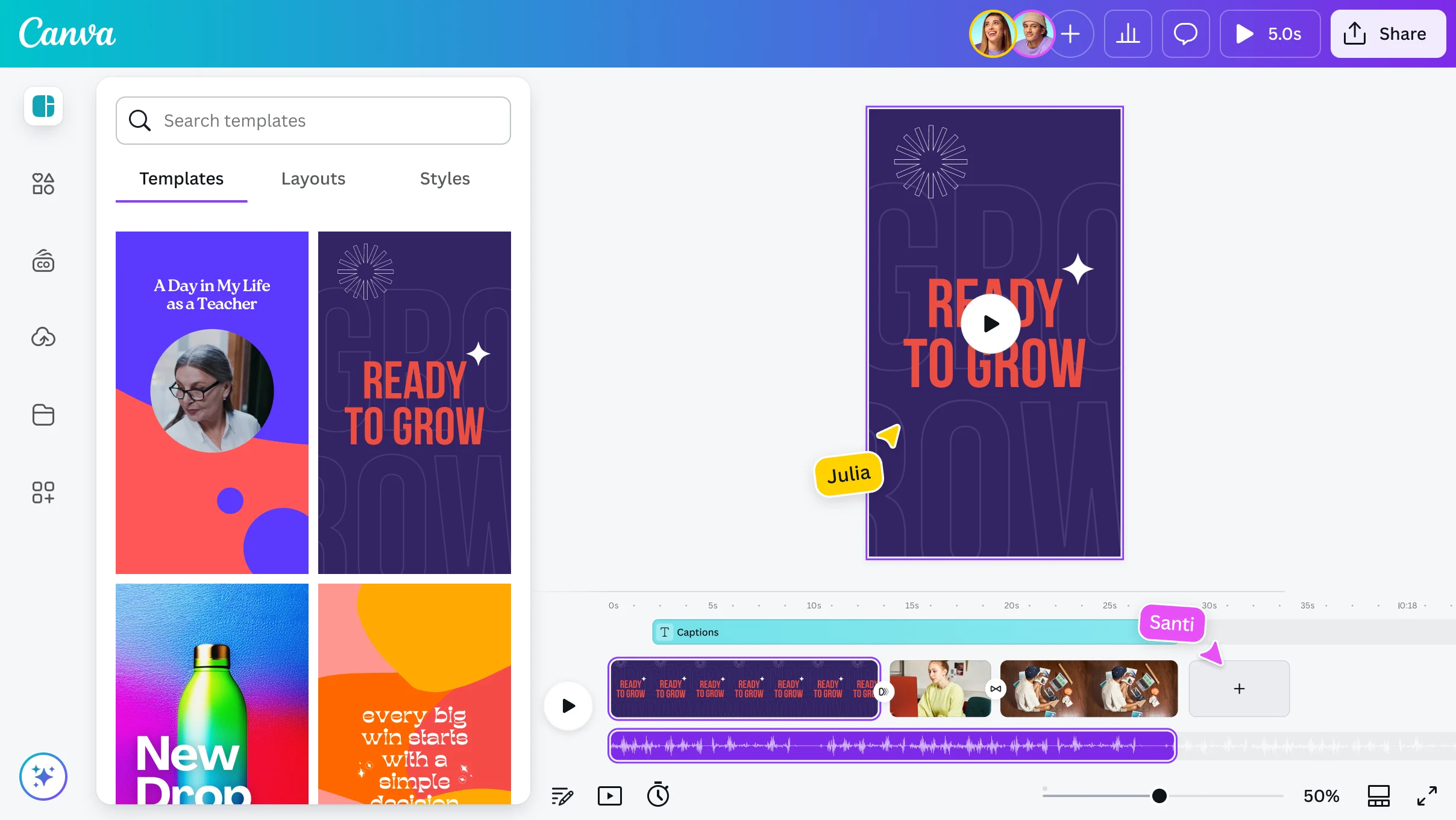
Its biggest advantage for social media is repeatability. Once your fonts, colors, logos, and templates are set up, you do not need to design every post from scratch. A marketer can take one core design, resize it for several platforms, change the copy or creative, and produce multiple versions relatively quickly.
How Should You Use Canva?
Canva works best as the visual production part of your social media workflow. Rather than opening it only when you need an occasional graphic, you can build reusable templates around the types of content you publish every week.
- You can create reusable templates for recurring content formats such as customer quotes, announcements, statistics, product updates, carousels, and event promotions.
- You can use Brand Kit to keep approved logos, fonts, colors, and other brand elements available to everyone creating social content.
- You can use Resize and Magic Switch to convert an existing design into dimensions suited to another social platform instead of recreating the creative manually.
- You can create and edit short-form videos using templates, stock footage, text, audio, transitions, trimming, and other built-in video tools.
- You can use Canva's AI tools to generate images, design elements, templates, copy, and other creative material. Some AI features are available on the free plan, while paid plans provide higher usage and additional tools.
- You can repurpose written material into social posts and captions using its AI social media tools, including turning material from blogs, newsletters, or videos into social-ready drafts.
- Canva Pro users can use the Content Planner to prepare and schedule social posts days or weeks ahead, including pausing and editing scheduled content without uploading it again.
- Teams can create shared designs and workspaces so marketers, designers, and other contributors can work from the same files instead of passing exported images back and forth.
Who Should Use Canva?
Canva is particularly useful for social media managers who need to produce a lot of visual material but do not have a designer available for every post. Founders, creators, freelancers, agencies, and small marketing teams can also get a lot from it because one subscription can cover static graphics, basic video editing, presentations, and other everyday marketing material.
Canva is less likely to replace specialist software when you need advanced motion graphics, detailed photo editing, or high-end video production. For regular social media production, though, those advanced capabilities may not be necessary.
Canva Pricing
Canva has a Free plan that includes its editor, free templates, and a range of free design and AI features. Canva Pro adds premium content, Brand Kit, Background Remover, Resize and Magic Switch, additional AI capabilities, and other paid tools.
For teams, Canva has shifted new customers toward Canva Business rather than Canva Teams. Canva Business currently costs US$20 per person per month and includes Canva Pro features along with shared workspaces, higher AI usage, additional brand controls, and other business-focused tools.
5. Gamma
Gamma started out being known mainly for AI-generated presentations, but it now has a dedicated social media format for creating posts, carousels, banners, stories, graphics, and infographics. You can give it a prompt or paste existing text, and Gamma generates the copy, visual structure, and layout together.
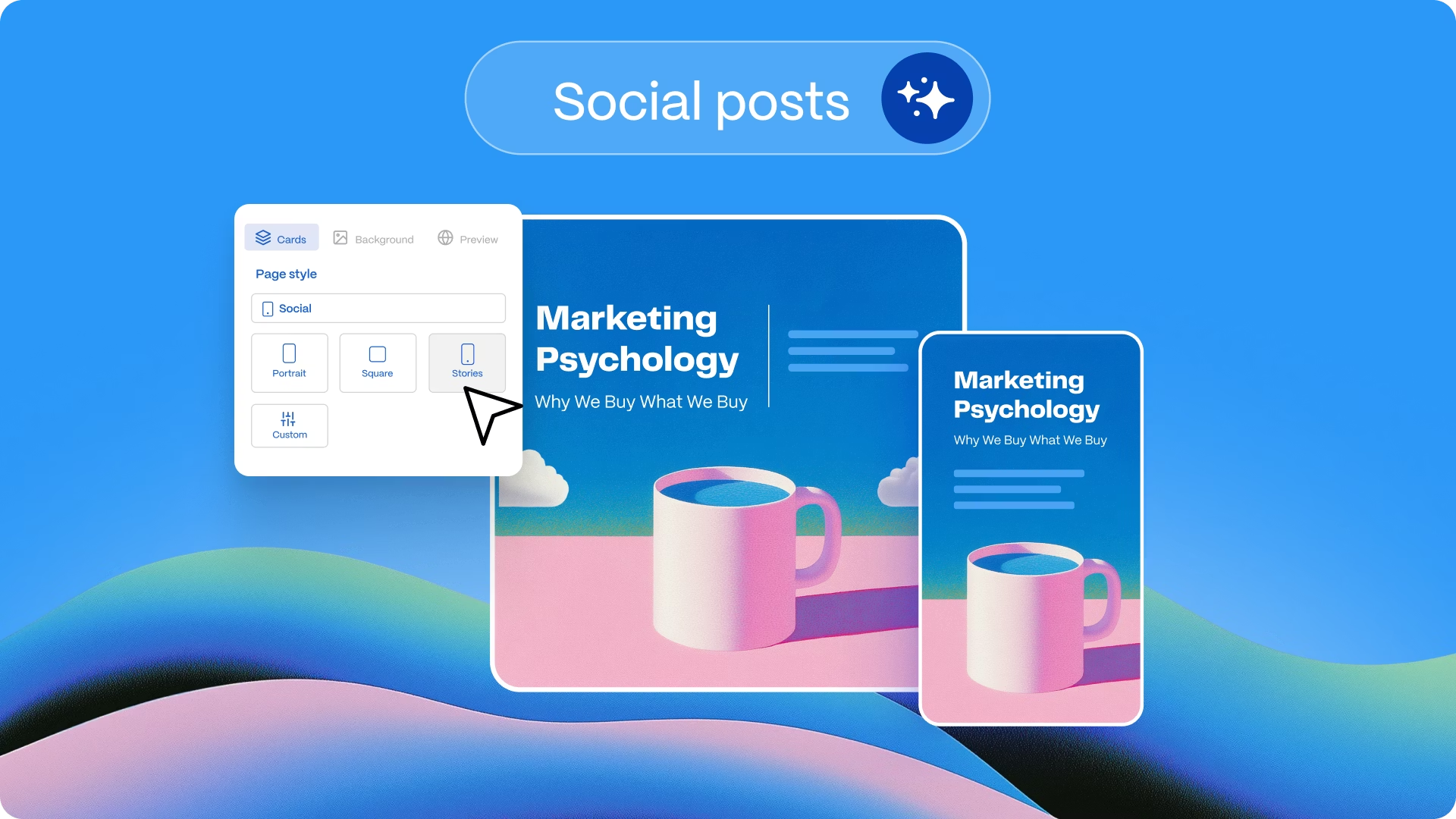
That makes Gamma particularly interesting for marketers sitting on a lot of written material. A blog article, research report, webinar summary, or collection of statistics can become the starting point for a LinkedIn carousel or a series of visual posts without manually designing every slide.
How Should You Use Gamma?
Gamma is most useful when you already have an idea or source material and need to turn it into something visual quickly.
- You can give Gamma a topic, prompt, or existing text, and it can generate both the visual treatment and caption copy for a social post.
- You can create multi-page carousel posts, which makes Gamma especially relevant for LinkedIn and educational Instagram content.
- You can convert longer material such as articles, reports, research, presentations, or internal documents into shorter visual content instead of rewriting and designing everything manually.
- Gamma can adjust content into different sizes and formats depending on where you plan to publish it.
- You can change generated copy, replace images, modify layouts, and apply themes after the first draft rather than treating the AI output as final.
- Paid plans add custom branding and fonts, which matters if Gamma-generated posts are going onto a company account rather than a personal profile.
- Gamma also gives access to different AI image models, so visuals can be generated inside the same workflow instead of sourcing every image separately. Higher plans provide access to more advanced models.
- Finished material can be exported to formats including PNG, PDF, PPTX, and Google Slides, giving you the option to make final adjustments elsewhere before publishing.
Who Should Use Gamma?
Gamma is a strong fit for B2B marketers, founders, consultants, content teams, and LinkedIn creators who regularly turn written material into visual content.
It is especially useful if your social strategy includes educational carousels, research summaries, thought-leadership posts, data-led content, or presentation-style posts. Teams that already produce blogs, reports, case studies, and webinars may get more from Gamma because they have a steady supply of material that can be repurposed.
Gamma Pricing
Gamma has a Free plan that supports basic presentations, documents, websites, social content, and images. Free users can also export their work to PDF, PPTX, PNG, and Google Slides.
Paid plans include Plus, Pro, and Ultra. As of August 2026, Gamma's Pro plan is listed at $18 per seat per month when billed annually, or $216 per seat per year. Pro adds custom branding and fonts, premium AI image models, detailed analytics, workspace templates, API access, and other features.
Gamma also has a Team plan listed at $20 per seat per month when billed annually for organizations that need shared collaboration, AI, and branding features.
6. Visme
Visme overlaps with Canva in some areas, but its stronger use case is content that needs to present information clearly. It is well suited to infographics, charts, reports, data-led posts, presentations, comparison graphics, and branded social media content. Visme also supports animated social posts and stories, so it is not limited to static designs.
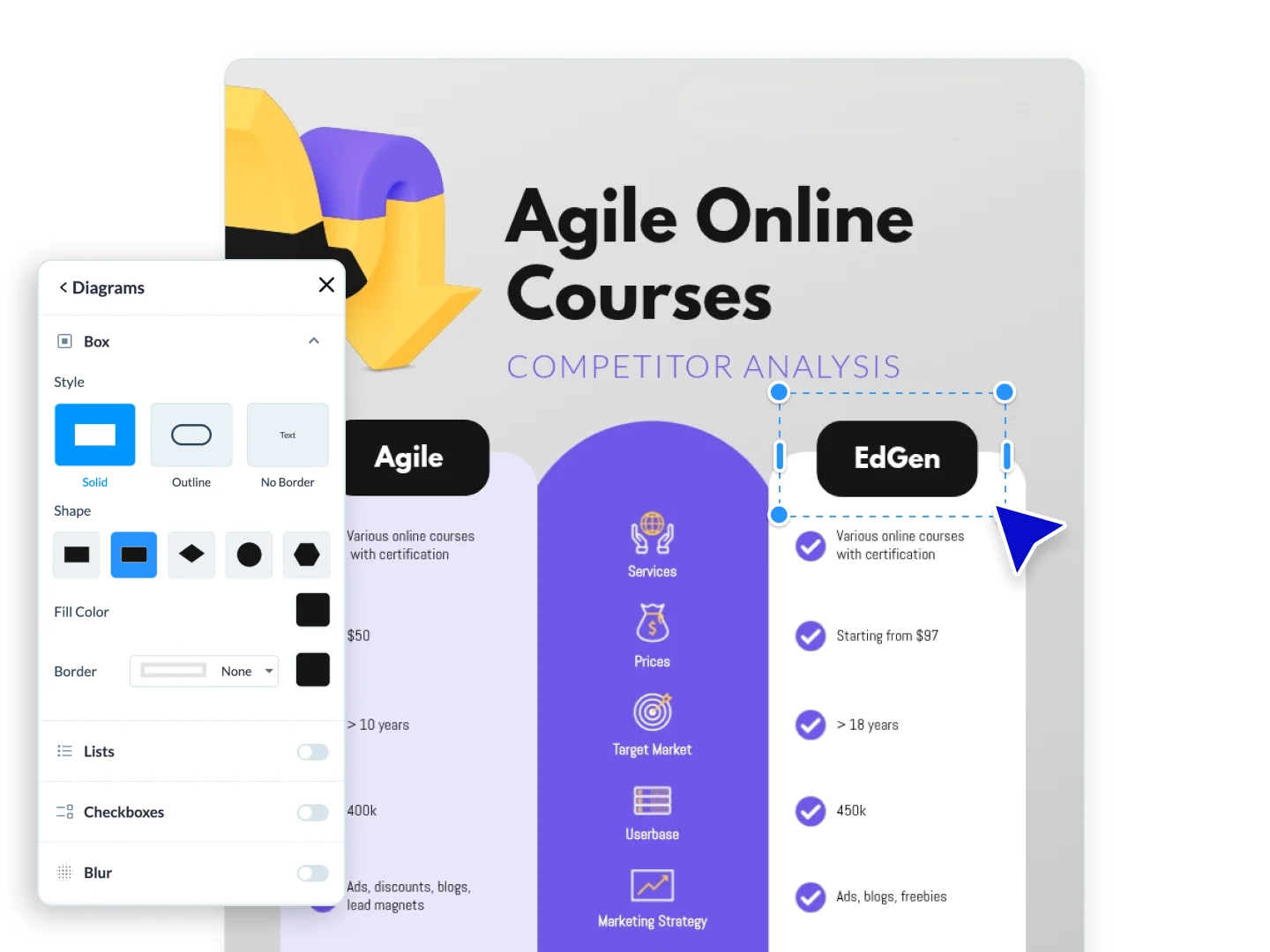
That makes it a good option for marketers who regularly work with statistics, survey results, campaign data, research findings, or educational content. Instead of posting a number as plain text, you can turn it into a chart, infographic, or visual summary that is easier to consume on social media.
How Should You Use Visme?
Visme works best when your social content needs more structure than a simple image and caption.
- You can create platform-specific social graphics for Instagram, LinkedIn, Facebook, Pinterest, and other channels using ready-made templates.
- You can turn statistics and research findings into charts, graphs, maps, pictograms, and infographics, which is useful for data-led LinkedIn posts or campaign summaries.
- You can create animated posts and stories using motion effects and pre-animated design elements rather than keeping every visual static.
- You can build recurring templates for quotes, announcements, statistics, product information, and campaign content so teams do not have to recreate layouts every time.
- You can use Visme for materials beyond social media, including presentations, reports, one-pagers, and infographics. This can be useful when the same research or campaign needs to appear across several formats.
- You can export social graphics as JPEG, PNG, animated GIF, or video, depending on the type of content you create.
- Teams can use shared workspaces and collaboration features when several people are contributing to the same set of marketing assets.
Who Should Use Visme?
Visme is a good fit for B2B marketing teams, agencies, consultants, researchers, and companies that publish a lot of educational or data-heavy content.
It is particularly useful when social media is only one destination for your visual content. If the same material also needs to appear in reports, presentations, sales material, or infographics, creating it inside one platform can reduce duplicated design work.
Visme Pricing
Visme currently has a Free plan, which includes core design tools, selected templates, and a limited number of AI credits. The free plan does not include all download options or premium assets.
As of 2026, paid pricing starts at:
- Starter: Around $12.25 per month when billed annually.
- Pro: Around $24.75 per month when billed annually.
- Enterprise: Custom pricing for larger organizations requiring additional security, administration, and onboarding.
For an individual marketer, Starter can be enough if the main requirement is regular visual content creation. Pro makes more sense when you need a wider set of professional features and are producing branded content frequently.
7. HeyGen
HeyGen is useful when video is part of your social media plan but recording every video yourself is not practical. You can create presenter-style videos with AI avatars, generate voiceovers, build a digital version of yourself, and translate existing videos into other languages.
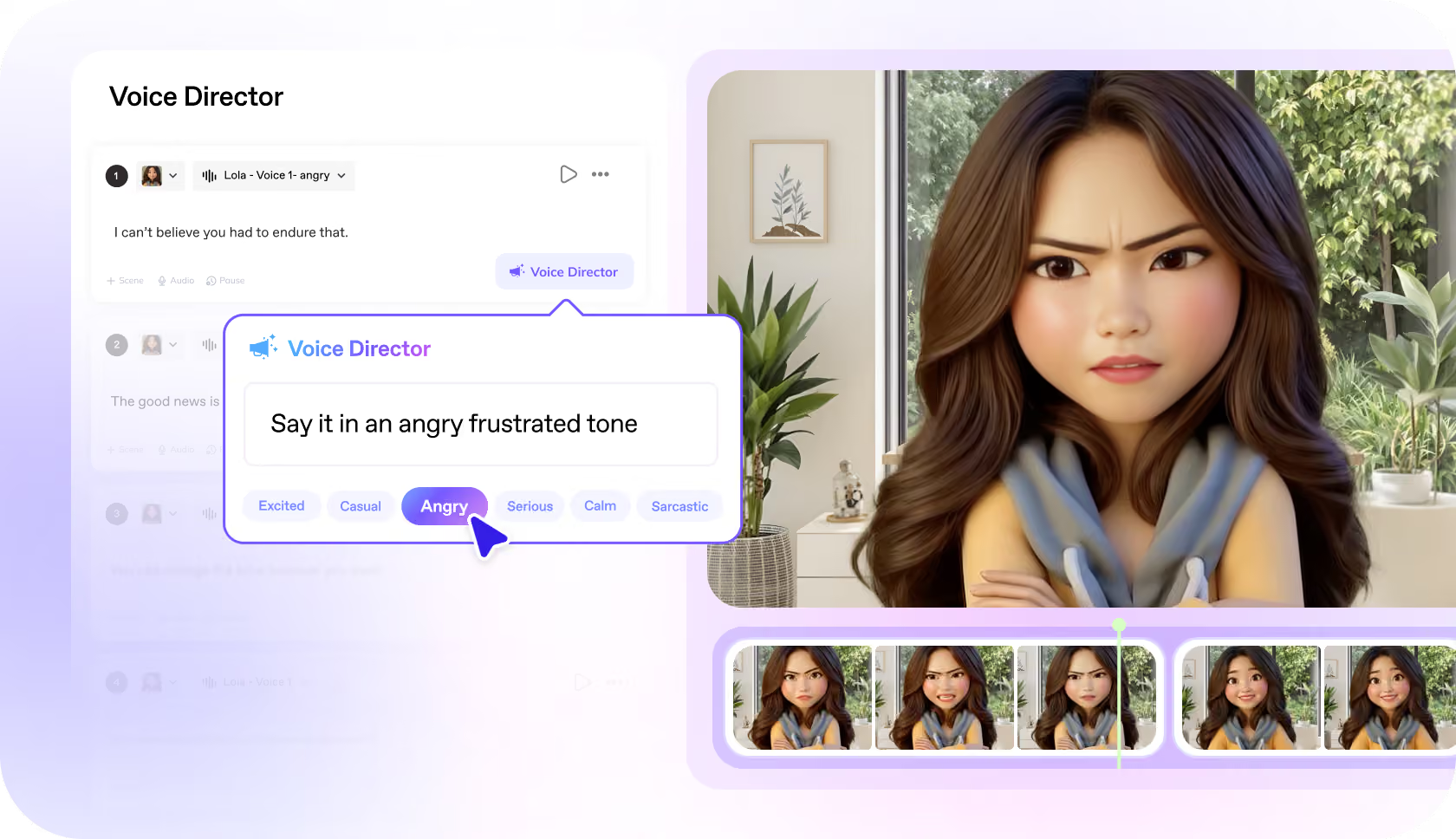
For marketers, its strongest use case is repeatable video production. A product update, feature announcement, educational post, or campaign message can be turned into a video without arranging a shoot each time.
How Should You Use HeyGen?
HeyGen works best for scripted videos where the message matters more than cinematic production.
- You can turn a written script into a video using one of HeyGen's stock AI avatars.
- You can create a custom digital twin based on your own recorded footage and use it for future videos without filming every script separately. Paid plans include custom digital-twin allowances.
- You can use Photo Avatars when you want to create speaking characters from still images rather than recorded presenters.
- You can generate AI voiceovers and clone a voice for more consistent narration across videos. The Creator plan currently includes voice cloning.
- You can translate existing videos into 175+ languages and dialects, while HeyGen can also preserve the speaker's voice and adjust lip movement to the translated audio.
- You can create multilingual versions of the same campaign rather than recording separate videos for every region.
- You can export videos in 1080p on Creator and up to 4K on higher plans.
- HeyGen's editor also supports text-based video creation, which makes it easier to revise a script without rebuilding the entire video.
Who Should Use HeyGen?
HeyGen is a good fit for SaaS companies, creators, product marketing teams, training teams, and businesses that need presenter-style videos frequently.
It is especially useful when:
- You need to publish video regularly but do not have an in-house production team.
- Your videos are mainly educational, informational, or product-led.
- You want the same video available in several languages.
- Team members do not want to appear on camera for every piece of content.
- You need a repeatable format for announcements, tutorials, explainers, or thought-leadership videos.
HeyGen Pricing
As of 2026, HeyGen has the following main plans:
- Free: $0 per month, with limited monthly video generation.
- Creator: $29 per month, or about $24 per month when billed annually. It currently includes 600 monthly credits, videos up to 30 minutes, 1080p exports, custom digital twins, stock avatars, voice cloning, and access to 175+ languages and dialects.
- Pro: Starts at $49 per month and adds more credits, 4K export, and higher production limits.
- Business: Starts at $149 per month, with additional seats currently priced at $20 per seat per month. It is designed for teams that need greater production capacity and collaboration.
- Enterprise: Custom pricing for larger organizations.
HeyGen uses a credit-based model for many AI generation features, so the headline subscription price does not always tell you how much video you can produce. If you plan to create a large number of videos every month, compare the included credits and generation limits rather than looking only at the monthly fee.
8. ElevenLabs
ElevenLabs fits into a social media stack when the bottleneck is audio rather than design or publishing. Its main strength is generating realistic speech from text, but the platform now also includes voice cloning, dubbing, speech-to-text, sound effects, music, and other audio tools.
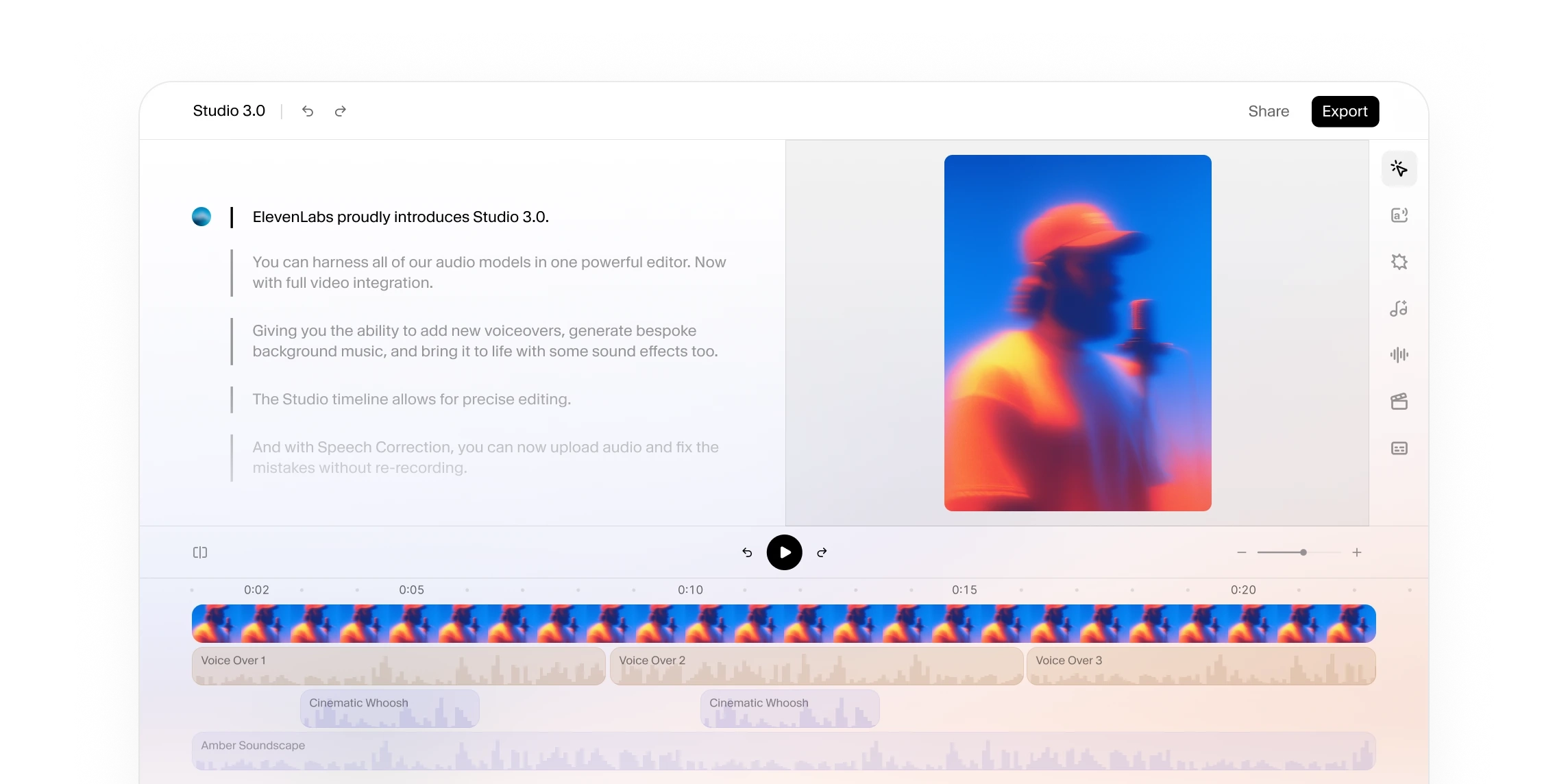
For social teams, this is useful because a video does not always need a recorded voiceover. A marketer can write the script, generate narration, pair it with product footage or animation, and produce several versions without arranging another recording session.
How Should You Use ElevenLabs?
ElevenLabs is most useful when you want to add consistent narration or multilingual audio to content you are already producing.
- You can turn written scripts into AI-generated voiceovers for Reels, Shorts, product videos, explainers, and other social content.
- You can choose from a large library of premade voices rather than recording narration yourself. ElevenLabs currently supports thousands of voices across many languages.
- Paid plans support Instant Voice Cloning, which lets you create a reusable version of a voice from a short audio sample.
- The Creator plan adds Professional Voice Cloning, which is better suited to people or brands that want a more accurate and consistent digital version of a voice.
- You can use dubbing to produce another language version of existing audio or video rather than recreating the entire asset. Dubbing Studio is included from the Starter plan.
- You can generate sound effects and music inside the same platform when your social videos need more than narration alone.
- Speech-to-text can also help when you need transcripts from existing recordings before turning them into captions, summaries, or new social posts.
- You can combine ElevenLabs with tools such as Canva, HeyGen, Steve.ai, or Descript. ElevenLabs handles the audio, while another platform handles the visual production and final edit.
Who Should Use ElevenLabs?
ElevenLabs is a good fit for video marketers, YouTube teams, podcast teams, creators, agencies, and businesses producing a steady volume of narrated content.
It makes particular sense when:
- You publish short-form videos regularly and voice recording is slowing production down.
- You want one consistent narrator across a large number of videos.
- You need translated or dubbed versions of existing social content.
- Your company publishes tutorials, explainers, product demos, or educational videos.
- You want to repurpose written content into audio-led formats.
ElevenLabs Pricing
ElevenLabs uses a credit-based model, so pricing should be considered alongside how much audio you expect to generate.
As of 2026, its main monthly plans are:
- Free: $0 per month with 10,000 credits.
- Starter: $6 per month with 30,000 credits. It adds commercial usage rights, Instant Voice Cloning, Dubbing Studio, and additional project capacity.
- Creator: $22 per month, with the first month currently discounted to $11. It includes 121,000 credits and Professional Voice Cloning.
- Pro: $99 per month with 600,000 credits and higher-quality audio output.
- Scale: $299 per month with 1.8 million credits, three workspace seats, team collaboration, and three Professional Voice Clones.
- Business: $990 per month with 6 million credits and 10 workspace seats.
- Enterprise: Custom pricing.
Annual billing brings the effective monthly price down. For example, Starter works out to about $5 per month, Creator to about $18.33, and Pro to about $82.50 when paid annually.
9. Steve.ai
Steve.ai is built for marketers who need to turn an idea, script, or block of text into a finished video without starting from an empty timeline. It can create animated videos, stock-footage videos, AI-generated clips, product videos, and voice-led content from written prompts.
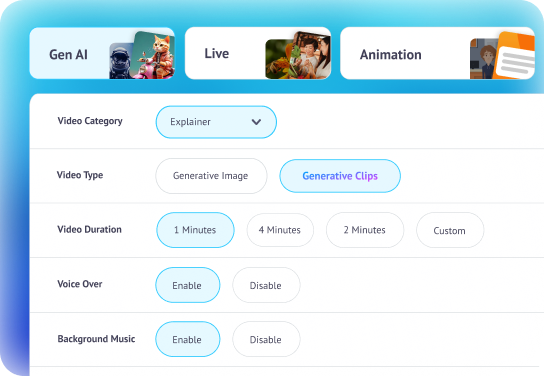
That makes it different from HeyGen. HeyGen is stronger when you specifically want an AI presenter or digital avatar, while Steve.ai is better suited to videos assembled from animation, stock media, generated visuals, narration, and scene-based storytelling.
How Should You Use Steve.ai?
Steve.ai works best when you already know what you want to say but do not want to manually build every scene.
- You can turn a written script into a video, with Steve.ai selecting scenes, visuals, and other elements based on the text.
- You can use prompt-to-video generation when you have an idea but have not written the complete script yet.
- You can choose between animated, live-action, stock-based, and AI-generated visual styles, depending on the type of social content you are making.
- Its animated-video tools are useful for explainers, educational posts, product walkthroughs, and social videos where filming a presenter would add unnecessary production work.
- You can add AI-generated voiceovers directly to videos rather than creating the narration in a separate application. Steve.ai currently lists more than 250 voices across multiple accents and languages for its voiceover tools.
- You can create product videos using templates, AI-generated scripts, stock assets, graphics, music, and other editable elements.
- Generated videos can still be edited after the first draft, including changing visuals, assets, music, backgrounds, and other scene elements.
- Depending on the plan and workflow, exports can support resolutions up to 4K.
Who Should Use Steve.ai?
Steve.ai is a good fit for content marketers, small marketing teams, agencies, educators, YouTubers, and businesses that need regular video content but do not have a dedicated editor working on every asset.
It makes the most sense when:
- You already produce blogs, guides, reports, or scripts that can be converted into videos.
- You need animated explainers or educational social content regularly.
- You do not want every video to depend on someone appearing on camera.
- You need a mix of animation, stock footage, generated imagery, and narration.
- You want to produce several versions of relatively straightforward videos without manually editing every frame.
If your main requirement is realistic avatar-led videos, HeyGen would usually be the stronger option. If you already have recorded footage and mainly need to edit, caption, and repurpose it, Descript may be a better fit.
Steve.ai Pricing
Steve.ai currently offers a free option with limited AI video credits, allowing users to test text-to-video and prompt-to-video workflows before paying. Its official site currently states that the free plan includes 200 AI video credits and 120 seconds of video creation.
As of 2026, the main paid plans listed on Steve.ai include:
- Basic: Around $10 per month.
- Starter: Around $30 per month on monthly billing, with lower effective pricing available on annual billing.
- Pro: Around $40 per month on monthly billing.
- Generative AI: Around $40 per month on the current pricing page.
- Enterprise: Custom pricing.
10. Descript
Descript is a video and audio editing tool built around text-based editing. Instead of working only with a traditional editing timeline, Descript automatically transcribes a recording and lets you edit the video by editing the transcript. Delete a sentence from the text, and the corresponding section is removed from the recording.
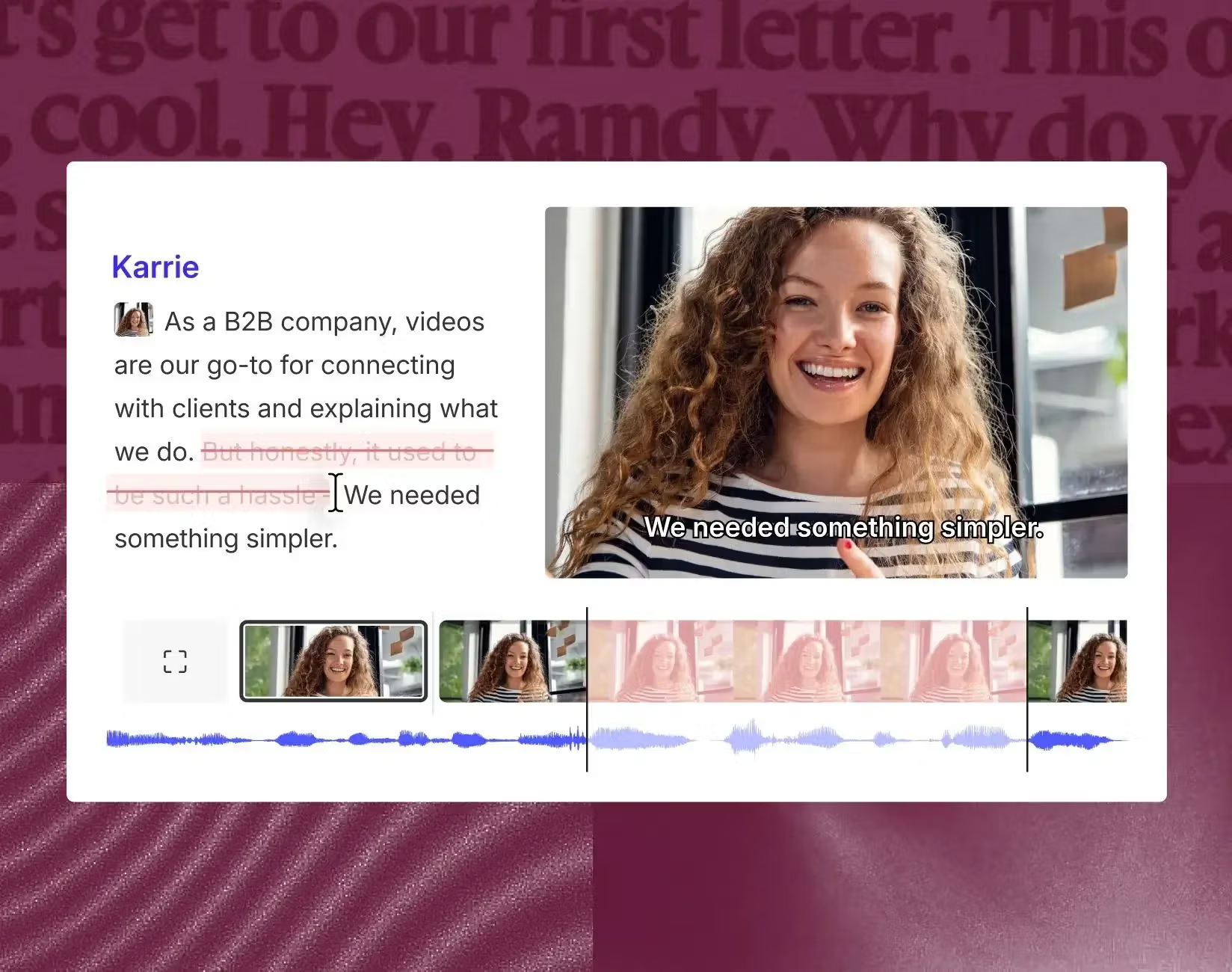
For social media teams, this makes Descript particularly useful after content has already been recorded. A 45-minute webinar, podcast, interview, or product conversation can become several short clips without manually searching through the entire recording for usable moments.
How Should You Use Descript?
Descript is strongest as the editing and repurposing part of your social media workflow.
- You can edit recorded video through its transcript, which makes cutting interviews, webinars, podcasts, and talking-head videos much faster than locating every edit manually on a timeline.
- You can use Create Clips to identify sections from longer recordings and turn them into shorter videos for platforms such as LinkedIn, Instagram, TikTok, and YouTube Shorts.
- You can automatically add and style captions, including animated captions for short-form social videos.
- You can use Remove Filler Words to detect and cut words such as "um," "uh," repeated words, and other verbal fillers from recordings.
- Studio Sound can clean background noise and improve recorded speech, which is useful when a podcast, interview, or remote recording was not captured in ideal audio conditions.
- You can use Remove Retakes to identify repeated attempts at the same line and keep the better take rather than manually finding each version.
- Descript includes Eye Contact, which can adjust the speaker's gaze so that someone reading from a script appears to be looking more directly toward the camera.
- You can use Green Screen to remove a video background without recording against a physical green screen.
- Descript can also generate AI speech, images, video, and B-roll, although usage depends on your plan and available AI credits.
- Business users can translate and dub videos into 30+ languages, which can help teams reuse the same recorded content across different regions.
Who Should Use Descript?
Descript makes the most sense for marketers who already have recorded content and want to get more social posts from it.
It is particularly well suited to:
- Podcast teams turning episodes into social clips.
- B2B marketers repurposing webinars and interviews.
- YouTubers creating Shorts from longer videos.
- Founders regularly recording thought-leadership videos.
- Marketing teams producing customer interviews and testimonials.
- SaaS teams creating product demonstrations and tutorials.
- Agencies editing recurring video content for clients.
Descript can also be useful for people who find traditional video editors difficult to work with. If you are comfortable editing a document, its transcript-based approach can make basic video editing much more approachable.
Descript Pricing
As of 2026, Descript offers a Free plan followed by three main paid tiers:
- Free: $0 per person per month, with 1 media hour and limited AI usage. Exports are currently available up to 720p without a watermark.
- Hobbyist: Around $16 per person per month when billed annually, or $24 on monthly billing. It includes 10 media hours, 400 AI credits, 1080p exports, Studio Sound, Remove Filler Words, Create Clips, AI Speech, and other AI editing tools.
- Creator: Around $24 per person per month when billed annually, or $35 on monthly billing. It includes 30 media hours, 800 AI credits, 4K exports, broader access to its AI editing tools, AI video generation, and its royalty-free stock media library.
- Business: Around $50 per person per month when billed annually, or $65 on monthly billing. It includes 40 media hours, 1,500 AI credits, Brand Studio, multilingual translation and dubbing, and additional team functionality.
- Enterprise: Custom pricing for larger organizations.
Descript meters usage through both media hours and AI credits. Importing or recording media consumes the included media allowance, while tools such as Studio Sound, filler-word removal, AI speech, generated video, and other AI functions consume AI credits.
Which Social Media Tool Should You Choose?
The right tool depends less on the number of features and more on where your current workflow is slowing down. If publishing is the problem, adding another design tool will not help. If your team already schedules content easily but struggles to produce videos, a tool such as HeyGen, Steve.ai, or Descript may have a bigger impact.
Here is a quick way to narrow down the options:
For a small marketing team, a combination such as Buffer + Canva + Descript may already cover most publishing, design, and repurposing needs. A B2B team producing reports and LinkedIn content may get more from Publer + Gamma + Descript. A video-heavy team may prefer Buffer + HeyGen + ElevenLabs, while a larger company handling high volumes of comments, approvals, reporting, and customer interactions may find Sprout Social easier to justify.
You also do not need to buy every tool at once. Start with the part of your workflow that consumes the most time, test one or two tools against that problem, and add another only when there is a clear gap. A smaller stack that your team actually uses is usually better than paying for ten overlapping platforms.
Frequently Asked Questions
What are the best social media tools for small businesses?
For most small businesses, Buffer or Publer can handle scheduling and publishing, while Canva can cover day-to-day graphics and basic video creation. If video becomes a bigger part of your strategy, Descript, HeyGen, or Steve.ai can be added based on the type of content you produce.
What is the best free social media management tool?
Buffer and Publer both offer free plans that can work well for lighter publishing needs. The better choice depends on how many accounts you manage, how frequently you post, and which scheduling features matter most to you.
Which tool is best for scheduling social media posts?
Buffer and Publer are strong choices if scheduling is your main requirement. Sprout Social also offers publishing and scheduling, but it is better suited to teams that also need inbox management, approvals, analytics, monitoring, and reporting.
Which social media tool is best for creating graphics?
Canva is the most practical general-purpose option for social graphics, carousels, stories, thumbnails, and short videos. Gamma works well for presentation-style and carousel content, while Visme is better suited to infographics, charts, and data-heavy visuals.
Which AI tools can create social media videos?
HeyGen, Steve.ai, and Descript can all help with video, but they solve different problems. HeyGen is suited to avatar-led videos, Steve.ai can turn scripts and prompts into generated or animated videos, and Descript works best for editing and repurposing recorded footage.
What is the best tool for managing multiple social media accounts?
Publer and Buffer are practical options for smaller teams managing several accounts. Sprout Social is better suited to larger teams that need to manage publishing, messages, approvals, customer interactions, and reporting across many profiles.
Can AI tools replace a social media manager?
AI tools can reduce the time spent on tasks such as drafting captions, designing posts, generating voiceovers, editing videos, and scheduling content. They still need someone to decide what to publish, maintain the brand voice, review output, respond to audiences, and judge what is actually working.
How many social media tools does a business actually need?
Most businesses do not need ten different tools. A simple setup usually needs one tool for scheduling and management, one for visual production, and possibly one for video or audio. The right number depends on how many channels you manage and the types of content you publish regularly.